Control the Windows Phone Back Button (Windows Phone Silverlight 7 / 8 / 8.1)

Note: This method for overriding the Windows Phone Back button is for Silverlight apps only. Windows Phone 8.1 WinRT apps (including universal apps) do not support this method. I will do a separate post for Windows Phone 8.1 WinRT.

By default Windows Phone keeps pages on a ‘back stack’ and automatically navigates backwards through that stack (eventually exiting the app) when you press the hardware Back button. This is intuitive, but you may want to override the behaviour from time to time.

However, keep in mind that the expected behaviour – that pressing Back takes the user back a step – should be preserved (you’ll likely fail certification if it isn’t). Overriding the Back button is not intended to let you assign the Back button to random functions (e.g. pausing audio playback); you should override the Back button when doing so preserves the user experience in an intuitive, logical way. For example I have an app that uses popup windows to display content. If a popup window is displayed and the user presses Back, the window closes, but the page does not navigate backwards.

Overriding the Back Button

To override the Back button you need a very simple method in your page’s code behind.
Firstly, add the ComponentModel namespace to your page:

using System.ComponentModel;

Then add this method:

protected override void OnBackKeyPress(CancelEventArgs e)
{
    // put any code you like here
    MessageBox.Show("You pressed the Back button");
    e.Cancel = true;                       
}

This little method overrides the default Back button behaviour with whatever you put inside it. There is one important line of code I’ve added in the above method:

e.Cancel = true;

Setting e.Cancel to true tells the OS to cancel the default Back button behaviour (i.e. navigating to the previous page). If you leave that line out your method would run, and then the phone would also navigate backwards (which may be the behaviour you want).

Read and Write Text Files (Windows 8.1 / Phone 8.1 Universal Apps)

Here is a simple way to read and write text files in a Windows app. Text-based files can be really useful, and you can even encode XML, JSON, and similar data into a text file.

This technique will work in any Windows 8.1 Store, Windows Phone 8.1, or Windows 8.1 Universal app (for a Universal app, put the code in a class in the shared project so the code can be accessed in both Windows and Windows Phone versions of the app).

Namespaces

Firstly, add these namespaces to your class:

using System.Threading.Tasks;
using Windows.Storage;
using System.IO;

Then add the following two methods. I’ve included comments to explain what each line does.

Write text to a file

This method receives a filename and some text content, and writes the content to a file (with the given filename, natch) into local storage:

async Task saveStringToLocalFile(string filename, string content)
{
    // saves the string 'content' to a file 'filename' in the app's local storage folder
    byte[] fileBytes = System.Text.Encoding.UTF8.GetBytes(content.ToCharArray());

    // create a file with the given filename in the local folder; replace any existing file with the same name
    StorageFile file = await Windows.Storage.ApplicationData.Current.LocalFolder.CreateFileAsync(filename, CreationCollisionOption.ReplaceExisting);

    // write the char array created from the content string into the file
    using (var stream = await file.OpenStreamForWriteAsync())
    {
        stream.Write(fileBytes, 0, fileBytes.Length);
    }
}

Reading text from a file

Now that we can write text to a file we need a way to read it back. This method takes a filename and reads the text in that file and returns it as a string:

public static async Task<string> readStringFromLocalFile(string filename)
{
    // reads the contents of file 'filename' in the app's local storage folder and returns it as a string

    // access the local folder
    StorageFolder local = Windows.Storage.ApplicationData.Current.LocalFolder;
    // open the file 'filename' for reading
    Stream stream = await local.OpenStreamForReadAsync(filename);
    string text;

    // copy the file contents into the string 'text'
    using (StreamReader reader = new StreamReader(stream))
    {
        text = reader.ReadToEnd();
    }            
          
    return text;
}

What next?

That’s it. Use the two methods above to read and write text to a file. You can use these methods in conjunction with parsing algorithms to read and write XML, JSON, etc., or to simply save settings and data for your app.

If you want to test that it’s working correctly, you could write a file and then read back the same file.

Windows 8.1 Universal App Hello World (C#)

“Hello World” is a programming staple used to introduce the fundamentals. If you’re new to programming, or to WinRT development, follow this tutorial to create a “Hello World” Windows 8.1 Universal App. A Windows Universal app runs on both Windows Phone 8.1 and Windows 8.1.

Prepare

You will need the following:

They are pretty big downloads, so don’t delay! This project should take about 10-15 minutes to complete (not counting downloading those large files and installing them), and here’s what we’ll cover:

  • Create a universal app project
  • Add simple C# code to a file in the Solution Explorer
  • Set the startup project
  • Run the app.

Step 1 – Get Started

Start by loading Visual Studio, and create a new project.

   Some of the menu options are slightly different in Visual Studio Express.

  1. FILE > New > Project:


The New Project window will open.

2. Navigate the menu tree on the left to find the Universal Apps templates (Installed > Templates > Visual C# > Store Apps > Universal Apps).

   If you don’t see the universal templates your Visual Studio might need an update. To check for updates choose TOOLS > Extensions and Updates from the main menu.

3. From the templates listed in the middle area, select Blank App (Universal Apps).

4. Type “HelloWorld” in the Name: field.

5. Click OK.


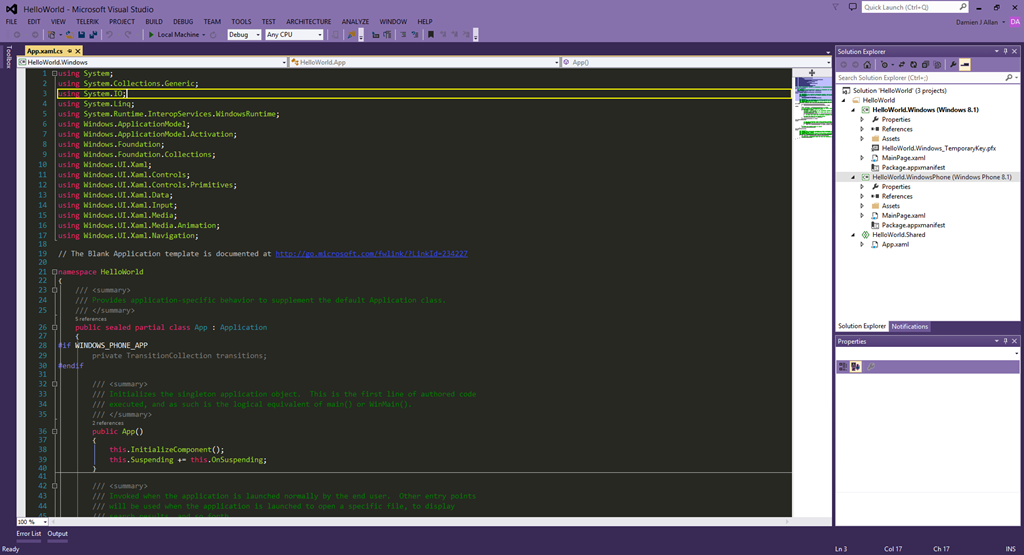
You’ve created a universal app called HelloWorld (though it doesn’t do anything yet)! You should see something like this:

The main area (dark with the brightly coloured text in my Visual Studio setup) is the code editor. Visual Studio has automatically opened a file called App.xaml.cs, which is one of the main files in a WinRT app, and is responsible for a lot of the app’s launching behaviour. That text is a C# class (a sub-division of code). For this tutorial you don’t need to know what it all means. On the right is the Solution Explorer. The solution is a container for all the code and files in our app.

Let’s have a closer look at the solution.

A Universal App Solution


A universal app solution consists of three projects (A, B, and C), each with its own code (and other files). The projects in a universal Windows app are:

a. Windows 8.1 (Store) project

b. Windows Phone 8.1 project

c. The shared project.

You’re probably thinking that having separate projects goes against the idea of a universal app, so let me explain.

What does Universal Mean?

You can’t run a Windows Phone app on a Windows PC (or vice versa), but beneath the surface they are running mostly the same code. Rather than create separate apps with overlapping code, Microsoft created the universal app model, which makes it really easy to create a single project that can output two separate apps (for Windows Phone and for Windows), which share as much code as possible.

Three Projects

Since Windows Phone 8.1 and Windows 8.1 Store apps both support mostly the same code, a universal app has a shared project. This project shares its code to the phone and PC/tablet projects, both of which can understand it.

Phone app = shared project + phone project

Windows app = shared project + Windows Store project

The separate Windows Phone and Windows Store projects include anything specific to each platform (most likely the user interface will be laid out differently, for example). Most of the nuts-and-bolts code can be put in the shared project, since the two platforms are mostly compatible.

Step 2 – Add the Code

We’re going to add a few lines of code to display a popup with the traditional “Hello World” message. In the Solution Explorer, find and double-click the App.xaml.cs file:

   The triangles expand file groups. Some items have linked files (a .xaml file is for XAML code – eXtensible Markup Language, and a .cs file is for C# code). Usually the XAML defines the user interface (it’s similar to HTML), and C# is the program that runs ‘behind the scenes’ (often called ‘code behind’). Expand App.xaml within the HelloWorld.Shared project to find App.xaml.cs.

What is App.xaml.cs?

This is the main code file that acts as a starting point for your entire app. It’s used mostly for initialising things in preparation for the rest of your app. We’ll just stick in a popup message here (you wouldn’t normally do this sort of thing in App.xaml.cs, but it’s a simple way to start as this file is shared by both the phone and tablet/PC app).

Using

The first line of code we will add is a ‘using’ directive. I won’t go into namespaces here, but in a nutshell, ‘using’ lets us use code our app couldn’t otherwise ‘see’. At the top of the App.xaml.cs file you’ll see several using directives, such as:

using System;
using Windows.UI.Xaml;

Add the following to that list (be careful to spell it correctly, and note C# is case sensitive):

using Windows.UI.Popups;

Popping up the Message

We will add a popup box that says “Hello World” when the app is launched. A universal app template already has a method (a block of code) that runs automatically when the app is launched, so we’ll hitch a ride in there. Find the following line in the App.xaml.cs code:

protected override void OnLaunched(LaunchActivatedEventArgs e)

After this line you’ll see code inside a pair of braces ( { } ), which define the start and end of the OnLaunched method. That code is irrelevant to us at the moment. Go to the end of this method (select the opening bracket just below the method name so that it is highlighted…then simply scroll down until you see a matching highlighted close bracket). The last line of this method is currently:

Window.Current.Activate();

Directly after that line (but before the closing bracket ‘}’), add the following:

MessageDialog msg = new MessageDialog("Hello World");
msg.ShowAsync();

These lines create a message dialog box called msg containing the words “Hello World”, and then displays it. And we’re done with the coding. This is just “Hello World” after all!

Step 3 – Running the App

A universal Windows app is two apps in one, so we need to tell it which we want to run. Since you’re developing on a PC, let’s test the Windows Store version first.

Test the Windows Version

Set the Windows app as our startup project:.

  1. In Solution Explorer, right-click on the HelloWorld.Windows (Windows 8.1) project and select Set as StartUp Project from the context menu.
  2. Choose Local Machine (the machine you are developing on) from the drop-down. This is where we are going to test the app.
  3. Click the Local Machine button with the green triangle. The app will build then run.


You should see this:

Click the stop button on the Visual Studio menu bar to stop the app:

Test the Windows Phone Version

Set the Windows Phone project as the start up project. You can test on a physical Windows Phone* or one of the emulators built in to the Windows Phone SDK. From the drop-down select Device or one of the emulators listed, and then hit the button to build/run the app.

   *The phone must be developer unlocked. If you have a developer account you can unlock your phone from the TOOLS > Windows Phone 8.1 menu. The phone needs to be plugged into the computer (and recognised, and the screen must be unlocked) to deploy the app.

You should see this:

Overview

We created a new universal app, with three projects (one each for Windows Phone and Windows Store, and a unifying shared project). Because Windows Phone and Windows Store apps both run on the WinRT framework we were able to add code to the shared project that was automatically included in both ‘versions’ of the app. We then ran and tested the app on both PC and phone.

When it comes time to publish a universal app for uploading to the stores, you would actually build your app twice and upload separate packages to the two stores (Windows Phone Store and Windows Store).

You should now have a fair idea of how to create a project, and know the basics of how Visual Studio organises a solution. You’re well on your way to building great universal Windows apps.

Make your Windows Phone 8.1 App a Share Target (C# or Visual Basic)

On mobile platforms, where it’s important to move between apps fluidly with somewhat limiting interfaces and partitioned app model, sharing content between apps is very powerful.

Windows Phone’s sharing implementation is great, and you can make your app a share target (allow it to receive content sent from another app) with just a few lines of code. 

In this article I’ll demonstrate how to make a very simple app that is a share target for a hyperlink. The app will display the link it receives in a popup box, and then return the user back to the app that shared the link.

Note: this method targets Windows Phone 8.1.

This simple implementation breaks down into two steps:

  • Step 1: Enable share target permission
  • Step 2: Add the code to receive shared content

Get started 

Create a new project for Windows Phone. You can use either C# or Visual Basic to follow along. Visual Studio 2013 (or the Express equivalent) is required. 

Step 1: Give your App Share Target Permission 

A Windows Phone app must declare it is a share target, and what content it can receive from shares. This is what determines that your app should pop up in the list of targets when a user shares content from another app. 

Open Package.appxmanifest and select the Declarations tab, then: 

  1. In the Available Declarations panel on the left, select Share Target from the drop-down 
  2. Click Add 
  3. In the Share Description field enter a name/description (e.g. Media Link
  4. Type the content type to receive in the Data format: field. In this example use URI (a hyperlink, such as you would share from Internet Explorer). 


Now your app is able to receive shared content from another app. 

Step 2: Implement the Code 

Add the following method to App.Xaml.cs / App.Xaml.vb. The OnShareTargetActivated method will run whenever you app is launched. 

You need first add some using declarations at the top of the class:

C#

using Windows.UI.Popups;
using Windows.ApplicationModel.Activation;

 VB

Imports Windows.UI.Popups
Imports Windows.ApplicationModel.Activation

Next, add in the method that runs when the user chooses the app when sharing:

C#

protected override void OnShareTargetActivated(ShareTargetActivatedEventArgs args)
{
    var link = args.ShareOperation.Data.GetWebLinkAsync().GetResults();
    MessageDialog messageDialog = new MessageDialog(link.ToString());
    messageDialog.ShowAsync();
    args.ShareOperation.ReportCompleted();
}

VB

protected Overrides Sub OnShareTargetActivated(args As ShareTargetActivatedEventArgs)
    Dim link = args.ShareOperation.Data.GetWebLinkAsync().GetResults()
    Dim messageDialog As New MessageDialog(link.ToString())
    messageDialog.ShowAsync()
    args.ShareOperation.ReportCompleted()
End Sub

And that’s all you need!

Testing the App

  1. Deploy your app to your phone (or the simulator)
  2. Launch Internet Explorer, and navigate to a webpage
  3. Choose the Share option from the slide-up menu at the bottom of the screen (Note: Share is greyed out until the page finishes loading)
  4. Select your app as the target.

You should see the popup message appear with the URL that was shared, then you will be returned to Internet Explorer.

Note: If your app doesn’t show up on the share target list, double-check that you’ve allowed the app to be a share target.


How does it work? 

Now that you have it working I will explain the code so you can understand what is happening.

OnShareActivated automatically runs when your app is launched as a share target.

Line 1: this extracts the data we want from the shared data bundle (ShareOperation.Data) sent to our app. In this example we knew we could only receive a hyperlink, so we just went and extracted a hyperlink. You can alternately use ShareOperation.Data.Contains() to determine if the data you want is present (e.g. if your app can receive different data types).

Line 2: & 3: Create and display a message dialog to the user with a string extracted from the shared data. 

Line 4: This tells the OS that you’ve handled the sharing. Your app window is closed and the user is returned to the originating app. 


Unity Scripting Primer Part 2 – MonoBehaviour methods

In Part 1 I covered public variables in Unity scripts. In Part 2 I will talk about MonoBehaviour methods. Unity scripts by default inherit MonoBehavior, and therefore implement many standard Unity methods, which give great, automatic functionality.

When a script inherits MonoBehavior, it is declared like this:

public class MyUnityScript : MonoBehavior

Inheritance is an important part of programming, so read up on it if you need to. For our needs you just need to know that when a class (effectively a script in Unity) inherits MonoBehaviour it becomes a copy of MonoBehaviour, but with its own unique code in addition to the MonoBehaviour code (much like cars and motorcycles are both vehicles, sharing many similar properties, but also having unique differences).

Here are some important and useful methods that automatically run for every MonoBehavior script. They each run at specific times and have specific uses.

Awake()

Awake() executes when the scene starts, as soon as the object containing the script is first created. It only runs once, and it runs before any other methods. You can use this to initialise anything, such as setting the sprite or the location.

void Awake()
{
   // initialise the object
   // set location, sprite, initial values, etc.
}

OnEnable()

OnEnable() is called when the scene starts, and when the game object and the item the script is attached to are both enabled. This will generally run as soon as your object in instantiated, but runs AFTER the Awake() method.

Because game objects can be disabled and re-enabled, this method can run multiple times throughout the life-cycle of your objects (e.g. when pausing/unpausing the game).

void OnEnable()
{
    // this code will run when  object is enabled
    // may run multiple times
}

OnDisable()

The opposite of OnEnable(). This will run when the game object is disabled. Use it to ‘clean up’ after an object.

void OnDisable()
{
    // clean up after a destroyed object
}

Start()

The Start() method is executed before the first Update() method (see below). The script instance must be enabled for Start() to run.

void Start()
{
    // do what needs to be done when the object starts
}

Update(), FixedUpdate(), LateUpdate()

The update methods are very useful and powerful, but you need to know the difference between them. Each runs repeatedly while your script is active, and they differ by em>when they run.

In a nutshell:

  • Update() runs every frame; framrate fluctuates according to hardware and complexity (e.g. a simple game on powerful hardware has a higher framerate than a complex game on weak hardware)
  • LateUpdate() runs every frame AFTER Update()
  • FixedUpdate() runs every PHYSICS ‘tick’; time between ticks is always the same regardless of hardware or game complexity.

 
Imagine a complex game with lots of physics interactions. On a low-end smartphone your game has less power available to draw all the graphics and compute the physics, but a gaming PC or console has much more power. You still want the game to play the same (falling items fall at the same speed, players jump at the same speed, etc.), but on the more powerful systems you would like to take advantage of the extra power to show smoother graphics (i.e. a higher framerate).

 void Update()
    {
        // code here will run every frame, running more often on faster devices
        // framerate will fluctuate if there is a lot of activity in the scene
        // use Update for anything that doesn't require accurate timing, such as user input
    }
   void FixedUpdate()
    {
        // code here will run at a fixed rate, always at the same interval regardless of device
        // any physics work must be done here as it relies on accurate timing
    }
   void LateUpdate()
    {
        // runs after each Update() method, and should be used for anything that should be updated after everything else, such as moving the camera
    }

NOTE: FixedUpdate() will not run the same number of times as Update() and LateUpdate(). Generally FixedUpdate() will run more often (especially in more complex games or on slower hardware).

The update methods should be used sparingly, as they run constantly (e.g. 60 times per second). Everything your code does in the update methods is being repeated many times per second, so avoid anything time consuming or wasteful (e.g. if you run a ‘for loop’ in Update() and loop through 100 items, you could be repeating that 60 times per second!).

You can think of Update() and LateUpdate() in terms of they will run as often as they can within the hardware and code restraints. FixedUpdate() will run at the constant physics rate unless your game is really struggling to keep up. The more work you do in your update methods the lower your framerate will be.

Recap

In short, the basic MonoBehaviour methods are:

  • Awake() – runs when your object is first created, and only runs once.
  • OnEnable() – runs when your object is enabled, which can happen more than once.
  • OnDisable() – runs when your object is destroyed and can be used for ‘clean up’.
  • Start() – runs when your object first starts.
  • Update() – runs every frame, avoid too much work.
  • FixedUpdate() – runs every physics tick.
  • LateUpdate() – runs at the end of every frame.

In Part 3 I will extend on this topic to talk about the automated collision detection in MonoBehaviour scripts, such as OnCollision2D() and OnTrigger().


Unity Scripting Primer Part 1 – Public Variables

We’ve all asked for help online and been given a succinct answer that, while probably 100% accurate, wasn’t any help at all because the helper assumed we knew something we didn’t. So frustrating!

In these posts I’ll cover the most simple, basic building blocks of Unity scripting in simple language without making too many assumptions, and I’ll be glad to help out if anything I present here doesn’t live up to that goal.

Assumptions

I will have to make some assumptions:

  • You know the basics of using Unity – creating scripts, what a prefab is, etc. Follow the basic tutorials available at Unity3D.com if you need to.
  • You’re using C# for scripting and know the language basics (most of the content here is theoretical, so it applies to JavaScript as well)
  • You understand general programming/scripting terminology (variable, method, etc.)

Public Variables in Unity

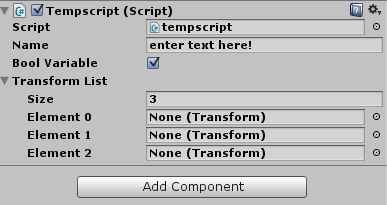
In Unity scripts, public variables (fields) are accessible via the Unity editor/designer. So, if you have:

public string Name;
public bool BoolVariable;

you will see something like this in the editor:

UnityPublicVariables AM

You can set/edit these public values in the editor while working on your game. And of course, being public, these variables can be accessed by other scripts in your game too.

BUT! Using a lot of public variables is poor practice, so another way to achieve the same goal without making variables public is to serialize the variables like this:

[SerializeField] private string name;

The above variable ‘name’ is private, but also accessible in the Unity inspector.
 

HINT: For Boolean variables, a tick means ‘true’ and no tick is ‘false’.

HINT: You can change public variables in real-time as you debug your game in the Unity editor, which lets you see the effect of different values.

You can even use lists of variables, such as:

public List<string>Names;

And in the designer you can set the number of list items and each value in the list:

UnityPublicVariables2

Remember though that if you declare these variables as public, but don’t set their values in the designer OR the script your script will throw exceptions when you try to access the (null) values.

You must include the relevant namespace at the top of your script to use lists:

using System.Collections.Generic;


Public Unity Objects

It’s very useful to use public variables to hold references to gameobjects, transforms, etc. When you do this, you can drag-and-drop items from your scene into the variable’s public value.

For example, if you want to reference a specific GameObject in your script, you can make a public field:

public GameObject MyGmeObject;

And drag-and-drop any game object from your scene into the empty field.

Your script can now access that game object via the MyGameObject variable. This is great for improving workflow, and even performance.

Of course you can use a list of GameObjects and drag-and-drop multiple objects into that list, such as a list of UI buttons or enemy spaceships.

Unity is also clever enough to infer the correct component if required. For example, if you have a public Transform variable and drag a game object onto it in the editor, Unity will automatically know to grab the game object’s transform to put into the public variable. This makes it much less fiddly than it could be.
Serialization

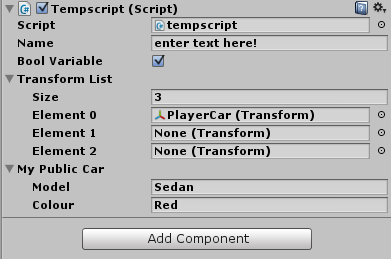
You can make custom classes editable in the Unity editor too. Simply add [System.Serializable] before the class definition, like this:

[System.Serializable]
public class Car
{
    public string model;
    public string colour;
}

UnityVars3


That’s It

That’s how public variables work in Unity!

Below is the full text for a script using the above examples. You can attach this script to any game object in your Unity project to check it out. One way to do this is:

  1. Create a new game object (Unity Menu > GameObject > Create Empty)
  2. Select the new game object in the Hierarchy panel.
  3. In the Inspector panel, click Add Component.
  4. Select New Script.
  5. Change the script’s name to DemoScript*.
  6. Click Create and Add.
  7. Double-click the script name in the Inspector panel (this opens the script in your script editor, probably MonoDevelop or Visual Studio).
  8. Delete all the current script code (Ctrl-A, Del)
  9. Copy and paste the script code below into the empty script.
  10. Save the script.
  11. Go back to Unity, where the public variables are now available to edit in the instpector.
  • In Unity, the script’s filename must match the class name. In the code below the class name is DemoScript, so the filename must also be DemoScript. You can of course change the name, but must change both the filename and the class name.

Demo Public Variables Script

using UnityEngine;
using System.Collections;
using System.Collections.Generic;

public class DemoScript : MonoBehaviour {

    public string Name;
    public bool BoolVariable;
    public List TransformList;

    [System.Serializable]
    public class Car
    {
        public string model;
        public string colour;
    }

    public Car MyPublicCar;

    // the rest of your code goes here!
    // you need to DO something with all those variables!
}

That’s the basics of how Unity handles variables in ways specific to creating games easily. In Part 2 I will explain the MonoBehaviour class’s special methods such as Update() and Awake().

Handling the Windows Phone 8 Back Button in Unity

Windows Phone apps must support the hardware back button. This button gives the user control of their phone, such as easily returning to the previous screen or exiting an application.

Since Unity is cross-platform, there is no specific command to support Windows Phone’s back button, but it’s easy to implement.

Unity treats the Back button as if it’s a keyboard’s Esc (escape) key, so we just need to detect when this ‘virtual’ Esc key is pressed. Add the following code where you detect user input (typically the Update() method):

#if (UNITY_WP8 && !UNITY_EDITOR) // only run this if the target platform is WP8 and the game is not running in the Unity editor
            if (Input.GetKey(KeyCode.Escape))
            { 
              OnBackButtonPressed(); 
            }  
#endif

The above code is calling a method called OnBackButtonPressed(), which you must now create, and add in code to take the appropriate action (e.g. to navigate to another screen or to close the application).

void OnBackButtonPressed()
{
  // add code here to handle the back button press
  Application.LoadLevel("PreviousScreen");
}

I put the escape key detection code in every scene in a script’s Update() method, and create a specific OnBackButtonPressed() method for each scene. For example, pressing Back from the Settings or About screens should take the player back to the main menu. Perhaps in your game pressing back on the game screen should pause the game, then return to the menu if is pressed a second time.

Keep the user experience and Windows Phone guidelines in mind when implementing the Back button. It must work intuitively. Don’t use the Back button as a control for your game. Use it to take the user back one level in the hierarchy of your game.

Plug time:
To see this technique in action in an actual Unity game on Windows Phone you can check out my game Clowntraptions:
http://www.grogansoft.com/Presskit/sheet.php?p=clowntraptions

Add Achievements to your Windows 8.1 Store Game (C#/XAML)

Achievements make games more fun and engaging. This tutorial shows how to add achievements to your own game, with the delight of toast notifications when your players earn an achievement.

toast

Introduction

This tutorial covers a generic achievement add-on, which you can adapt to your own games easily. The example is for Windows 8.1 Store apps (in C# and XAML), but the basic ideas can be easily adapted elsewhere. You’ll need a minimum of Visual Studio Express 2013 for Windows to follow this tutorial.

We’ll create five things:

  1. An Achievement class, used to give each achievement a name, image, points, etc.
  2. An AchievementsManager static class to test achievements and display notifications
  3. An AchievementsList class, where we define all our achievements
  4. A “game” with three sample achievements to reward button clicks
  5. A method to display toast notifications for unlocked achievements.

Overview

We will set up our app so that the core game code only ever needs to call methods that check for achievements progress. Everything else is kept separate from the main code. AchievementsManager checks the achievements with a predefined list, then displays toast notifications when one is unlocked.

flowchart


Step 0

Create a new Visual Studio project with C#/XAML and call it Achievements.

Detailed Instructions

new_project_achievements

  1. Open Visual Studio.
  2. From the top menu bar select FILE > New Project…
  3. In the New Project window, select Templates > Visual C# > Store Apps > Windows Apps from the left-hand panel.
  4. From the list of templates in the middle section, click once on Blank App (Windows) to highlight it.
  5. In the Name: field near the bottom of the screen replace the default (usually App1) with Achievements.
  6. Click OK in the lower-right corner.

Step 1 – the Achievement Class

Each achievement will inherit from a base achievement class containing how many points it’s worth, what it’s called, and so on, as well as the code that tests if the achievement conditions are met.

Add a new class to your solution called Achievements.cs.

Detailed Instructions

  1. In the Solution Explorer pane, right-click on the  project name, select Add, then Class…

create_new_class

  1. In the Add New Item window rename the new class Achievement.cs by changing the Name: field:

name_class

Open the class you just created (double-click Achievement.cs in the Solution Explorer pane). Paste in the following code (replace the automatic code that Visual Studio put in there):


using System;
using System.Collections.Generic;
using System.Linq;
using System.Text;
using System.Threading.Tasks;
using Windows.Storage;

namespace Achievements
{
    public class Achievement
    {
        public string Image { get; set; } // small 60x60 image displayed in the toast notification
        public string Description { get; set; } // used to describe how the achievement is earned
        public int Points { get; set; } // how many game points this achievement is worth
        public AchievementsManager.AchievementCategory Category; // category for lumping achievements together for efficiency
        public string Name { get; set; } // title - try to have fun, witty titles

        public bool Achieved
        // is this achievement earned yet?
        // used to make sure that conditions are not checked for achievements that are already won
        // does not test the achievement conditions, only returns whether this is marked as gained or not
        // use when listing achievements and check BEFORE testing achievements
        {
            get
            {
                // stored in LocalSettings as ("achieved_" + achievement name)
                // if the value is not stored the default will be false
                if (ApplicationData.Current.LocalSettings.Values.ContainsKey("achieved_" + Name))
                {
                    string achStatus = ApplicationData.Current.LocalSettings.Values["achieved_" + Name].ToString();
                    if (achStatus == "True")
                        return true;
                    else
                        return false;
                }
                else
                {
                    return false;
                }

            }

            set
            {
                if (ApplicationData.Current.LocalSettings.Values.ContainsKey("achieved_" + Name))
                    ApplicationData.Current.LocalSettings.Values["achieved_" + Name] = value.ToString();
                else
                    ApplicationData.Current.LocalSettings.Values.Add("achieved_" + Name, value.ToString());

            }

        }

        public bool CheckIfAchieved()
        // run the when you want to actually test for the achievement conditions, such as when a level is completed
        // if not, it goes on to test the achievement progress
        {
             if (Achieved) // check if the achievement was already marked as achieved
                return true;
            else // if not marked as achieved test if the conditions are now met to unlock it
                 return AchievedTest;

        }

    public virtual bool AchievedTest // virtual, must always be overridden by each achievemnt, which must have unique requisites
        // only call this if the progress has not been marked done (via Achieved() )
        // DO NOT use this when displaying a list of achievements, as it will test ALL achievements and reduce performance

    {
        get
        {

            return false; // code here doesn't matter as it will be overridden
        }

    }

    }
}

Note: AchievementCategory will be described in the AchievementsManager class (so ignore the ‘red squiggly’ underneath it for now).

Step 2 – Managing Achievements

I like to use ‘manager’ classes to implement modular functionality. My convention is to allow the main program to only communicate directly with the manager class, and let the manager class do all the actual work. Our manager class will check achievements and notify the user when one is earned; the main program will ask the manager to check achievement progress when required.

We’ll include the following in AchievementsManager:

  • The definition of an enum type that holds the different achievement categories
  • Methods to check achievements by category
  • A method to display toast notifications.

We use categories so we can check only the achievements that could be triggered by a particular event. For example, if we have a category ‘Levels’ that contains achievements for ’10 Levels Completed’, ’20 Levels Completed’, etc., we should only check those achievements when the player completes a level, not every time they kill a goblin (which would have its own category, such as ‘GoblinsKilled’ or ‘EnemiesSlain’).

Add another new class to your solution, and call it AchievementsManager.cs. Paste in the following code:

using System;
using System.Collections.Generic;
using System.Linq;
using System.Text;
using System.Threading.Tasks;
using Windows.UI.Notifications;
using Windows.Data.Xml.Dom;

namespace Achievements
{
    public static class AchievementsManager
    {
        public enum AchievementCategory
        {
        // each achievement has a category, which determines when it is checked for completion
        // for example achievements that check the number of completed levels only get checked when a level is completed
        // this will save on checking ALL achievements whenever something in the app occurs that may trigger an achievement

            ButtonOne, // checked whenever button 1 is pressed
            ButtonTwo, // checked whenever button 2 is pressed
            TotalButtons // checked when any button is pressed

        } ;

        public static void TestButtonOneAchievements()
        {
            // check each achievement with the ButtonOne category
            foreach (Achievement cheev in AchievementsList.AllAchievements)
            {
                if (cheev.Category == AchievementCategory.ButtonOne)
                {
                    // this checks the achievement by running the code that tests its completedness
                    var c = cheev.CheckIfAchieved();
                }
            }
        }

        public static void TestButtonTwoAchievements()
        {
            foreach (Achievement cheev in AchievementsList.AllAchievements)
            {
                if (cheev.Category == AchievementCategory.ButtonTwo)
                {
                    var c = cheev.CheckIfAchieved();
                }
            }
        }

   public static void TestTotalButtonsAchievements()
        {
            foreach (Achievement cheev in AchievementsList.AllAchievements)
            {
                if (cheev.Category == AchievementCategory.TotalButtons)
                {
                    var c = cheev.CheckIfAchieved();
                }
            }
        }

    public static void DisplayAchievementToast(Achievement cheev)
        // displays a toast notification using data from an achievement that has just been unlocked

        {
        var toastTemplate = ToastTemplateType.ToastImageAndText04;
        XmlDocument toastXml = ToastNotificationManager.GetTemplateContent(toastTemplate);

        XmlNodeList toastTextElements = toastXml.GetElementsByTagName("text");
        toastTextElements[0].AppendChild(toastXml.CreateTextNode(cheev.Name));
        toastTextElements[1].AppendChild(toastXml.CreateTextNode(cheev.Description));
        toastTextElements[2].AppendChild(toastXml.CreateTextNode(cheev.Points.ToString() + " pts"));

        // to add an image, put some images in your solution and add their file paths to the .Image properties of your achievements
        XmlNodeList toastImageAttributes = toastXml.GetElementsByTagName("image");
        ((XmlElement)toastImageAttributes[0]).SetAttribute("src", cheev.Image);

        var toasty = new ToastNotification(toastXml);

        ToastNotificationManager.CreateToastNotifier().Show(toasty);
        }
    }
}

As before, ignore the ‘red squiggles’ that refer to code we haven’t yet implemented.

Note: An alternative it to replace all of the checking methods with a generic one, and pass the category from your main code.

Step 3 – Creating Achievements

Now that we have an achievement class, and a manager to handle checking for achievements, it’s time to create a few achievements. In your own game you will have all kinds of wonderful things to make your players strive for: gems, levels, hidden items, points, etc., but in our example we’ll just have three achievements that reward the player for clicking some buttons.

Create a new class called AchievementsList.cs and enter the code below:

using System;
using System.Collections.Generic;
using System.Diagnostics;
using System.Linq;
using System.Text;
using System.Threading.Tasks;
using Windows.Storage;

        namespace Achievements
{
            public static class AchievementsList
            {
                // initialise the list of achievements
                public static List<Achievement> AllAchievements = new List<Achievement>();

                static AchievementsList()
                {
                    // add an instance of each achievement into our list
                    AllAchievements.Add(new Achievement1());
                    AllAchievements.Add(new Achievement2());
                    AllAchievements.Add(new Achievement3());
                }

                public class Achievement1 : Achievement
                // refer to the Achievement class earlier in this tutorial for descriptions of these properties
                {
                    public Achievement1()
                    {
                        Name = "Button One Master";
                        Points = 5;
                        Description = "Pressed Button One 5 times!";
                        Image = "/Assets/AchievementsImages/star_1.png";
                        Category = AchievementsManager.AchievementCategory.ButtonOne;
                    }

                    public override bool AchievedTest
                    {
                        get
                        {
                            if (ApplicationData.Current.LocalSettings.Values.ContainsKey("button1presses"))
                            {
                                string numOfPresses = ApplicationData.Current.LocalSettings.Values["button1presses"].ToString();
                                int numAsInt = Convert.ToInt16(numOfPresses);
                                if (numAsInt >= 5)
                                {
                                    AchievementsManager.DisplayAchievementToast(this);
                                    Achieved = true;
                                    return true;
                                }
                                else
                                    return false;
                            }
                            else
                                return false;
                        }
                    }
                }

                public class Achievement2 : Achievement
                {
                    public Achievement2()
                    {
                        Name = "Button Two Presser!";
                        Points = 5;
                        Description = "Pushed Button Two 10 times!";
                        Image = "/Assets/AchievementsImages/star_2.png";
                        Category = AchievementsManager.AchievementCategory.ButtonTwo;

                    }

                    public override bool AchievedTest
                    {
                        get
                        {
                            if (ApplicationData.Current.LocalSettings.Values.ContainsKey("button2presses"))
                            {
                                string numOfPresses = ApplicationData.Current.LocalSettings.Values["button2presses"].ToString();
                                int numAsInt = Convert.ToInt16(numOfPresses);
                                if (numAsInt >= 10)
                                {
                                    AchievementsManager.DisplayAchievementToast(this);
                                    Achieved = true;
                                    return true;
                                }
                                else
                                    return false;
                            }
                            else
                                return false;

                        }
                    }

                }

                public class Achievement3 : Achievement
                {
                    public Achievement3()
                    {
                        Name = "Mega Presser!";
                        Points = 10;
                        Description = "Pressed a total of 20 times!";
                        Image = "/Assets/AchievementsImages/star_2.png";
                        Category = AchievementsManager.AchievementCategory.TotalButtons;

                    }

                    public override bool AchievedTest
                    {
                        get
                        {
                            int totalPresses = 0;
                            if (ApplicationData.Current.LocalSettings.Values.ContainsKey("button1presses"))
                            {
                                string numOfPresses = ApplicationData.Current.LocalSettings.Values["button1presses"].ToString();
                                int numAsInt = Convert.ToInt16(numOfPresses);
                                totalPresses += numAsInt;
                            }
                            if (ApplicationData.Current.LocalSettings.Values.ContainsKey("button2presses"))
                            {
                                string numOfPresses = ApplicationData.Current.LocalSettings.Values["button2presses"].ToString();
                                int numAsInt = Convert.ToInt16(numOfPresses);
                                totalPresses += numAsInt;
                            }
                            if (totalPresses >= 20)
                            {
                                AchievementsManager.DisplayAchievementToast(this);
                                Achieved = true;
                                return true;
                            }
                            else
                                return false;
                        }

                    }

                }
            }
}

Note: these achievements have image properties. To get images to display in the notifications, put images into your project with matching filenames. You can use the image from the sample project or make your own. If you don’t add images, this code will still work, but your toasts won’t have pictures.

Step 4 – The game

Let’s put these pieces into some context. We’ll create a simple game with two buttons. Each button press will get recorded, and we’ll check each of the achievements for each button when that button is pressed, displaying a toast notification whenever an achievement is reached. Add two buttons to your app.

Copy the code below into your MainPage.xaml (within the <Grid> control) or manually create two buttons called ButtonOne and ButtonTwo.

<Button x:Name="ButtonOne" Content="1" HorizontalAlignment="Left" Margin="437,381,0,0" VerticalAlignment="Top" Width="161" Height="65" Click="ButtonOne_Click"/>
        <Button x:Name="ButtonTwo" Content="2" HorizontalAlignment="Left" Margin="787,429,0,0" VerticalAlignment="Top" Height="59" Width="91" Click="ButtonTwo_Click"/>

Now add the following event handlers to the MainPage.xaml.cs. Here we keep track of the number of presses for each button, and we also call our achievement tests. Paste the following code after the public MainPage() constructor method:

         // these two methods record how many times each button is pressed in application settings data
        private void ButtonOne_Click(object sender, RoutedEventArgs e)
        {
            if (Windows.Storage.ApplicationData.Current.LocalSettings.Values.ContainsKey("button1presses"))
            {
                string numOfPresses = Windows.Storage.ApplicationData.Current.LocalSettings.Values["button1presses"].ToString();
                int numAsInt = Convert.ToInt16(numOfPresses);
                numAsInt++;
                Windows.Storage.ApplicationData.Current.LocalSettings.Values["button1presses"] = numAsInt.ToString();
            }
            else
                Windows.Storage.ApplicationData.Current.LocalSettings.Values.Add("button1presses", "1");
            AchievementsManager.TestButtonOneAchievements();
            AchievementsManager.TestTotalButtonsAchievements();

        }

        private void ButtonTwo_Click(object sender, RoutedEventArgs e)
        {
            if (Windows.Storage.ApplicationData.Current.LocalSettings.Values.ContainsKey("button2presses"))
            {
                string numOfPresses = Windows.Storage.ApplicationData.Current.LocalSettings.Values["button2presses"].ToString();
                int numAsInt = Convert.ToInt16(numOfPresses);
                numAsInt++;
                Windows.Storage.ApplicationData.Current.LocalSettings.Values["button2presses"] = numAsInt.ToString();
            }
            else
                Windows.Storage.ApplicationData.Current.LocalSettings.Values.Add("button2presses", "1");

            AchievementsManager.TestButtonTwoAchievements();
            AchievementsManager.TestTotalButtonsAchievements();
        }

When each button is pressed we check for two categories of achievement – the one for that button and the one that counts all button presses. We don’t check for ButtonTwo achievements when ButtonOne is pressed because it’s impossible for a ButtonOne press to trigger a ButtonTwo achievement. This is how using categories lets us avoid checking all the achievements all the time, improving efficiency and performance.

Next, add this single line to the end of the MainPage() constructor. It will reset the stored button presses each time the game is run so we can play it over and over:

 Windows.Storage.ApplicationData.Current.LocalSettings.Values.Clear();

We’re using isolated storage user settings to keep track of player progress (button presses in this example), because we never want that information to disappear when the game is closed. You wouldn’t reset progress like this in a proper game.

Step 5 – enable toast notifications

One last thing: allow your app to display toast notifications (this is disabled by default):

  1. Double-click Package.appxmanifest in the Solution Explorer
  2. In the Application tab, Notifications area, set Toast capable: to Yes.

Now run the app. Press the buttons to earn achievements. Even with a simple, dumb game like this you can see how much value and fun achievements add.

Overview

What did we do in all that code above?

We started with a class to hold our achievements and gave it the usual properties you’d expect – a name, an image, a points value, and most importantly some code to check when the achievement is earned. We later made three sample achievements inheriting this class, and these achievements tested button press totals.

Our manager class is how the game interacts with achievements – by requesting to check achievements of a certain category when events in the game demand it (e.g. check ButtonOne achievements when ButtonOne is pressed). We use categories so we can avoid checking achievements that we know couldn’t be triggered by the specific event that led us to check for achievements (e.g. we don’t check for the number of stars collected when the player has just killed a goblin); this also makes for neater code.

Troubleshooting

  • If you have any ‘red squigglies’, make sure you’ve named all your classes correctly. ‘Achievement’ is a tricky word to type, so make sure you haven’t mis-spelled it anywhere. I typed it wrong about 100 times writing this tutorial… make sure that ‘v’ has an ‘e’ on either side!
  • If the code is running fine but you don’t get the notification toasts, make sure you’ve done Step 5 to enable toasts.
  • Download the project from the link at the bottom and compare its code with your own.
  • If you have created your own achievements, make sure to include them in the AchievementsList or the app won’t ever check them.
  • If you’re not using Windows 8.1/Visual Studio 2013 you might need to adjust some of the code. Send a comment if you’re stuck. This code should work on Windows 8.0, and with some modifications on Windows Phone.

What Next?

Try adding a few more achievements to the example, and maybe even another measure of player progress (a third button, a timer, etc.). Some ideas for extra achievements:

  • Press both buttons at least 12 times each
  • Press ButtonOne, ButtonOne, ButtonTwo, ButtonTwo in that sequence.

In a game you’ll want a page where the player can view which achievements they have and have not earned. When you  do this, be sure to bind the ‘achieved’ status (e.g. to a ‘tick’ icon) to the Achieved property, not the AchievedTest property (because that would test every achievement every time the list is displayed, which would be inefficient). Remember to check achievements only when something happens that could trigger them. The more complex your game and achievements, the more important that efficiency will be.

You can add a method to count the total achievements points earned. Loop through the achievements and add their points value to a total if the Achieved property is true. This total would be great on a Windows live tile.

You can check out my game Puzzle Detective to see the above method in action, including an achievements list page with a running points total.

Links
Achievements sample app
Puzzle Detective for Windows 8.1