Publishing on Android

I have just published my first application on the Android platform. My game, Clowntraptions, was built in Unity, and therefore I could easily port it to Android even though it was designed for Windows Phone and Windows 8 primarily.

The main issue I had with Android was dealing with different screen sizes and resolutions, because on the Android platform there are so many different devices with very little standardisation. Compare this to Windows Phone, where you can build for a single screen resolution. Luckily, I had the skeleton of a screen resolution adjustment in the game in order to handle Windows 8.1’s varying screen shape. I built from there to allow for any common screen resolution.

One weird limitation that the Android Play Store has is that you can’t change an app from free to paid or vice versa. Once an app is set as free it must always remain free, and once set as paid it must always stay paid. Because of this I ultimately published two versions of my game, a free one and a paid one. Of course on Windows platforms there is free trial functionality to incorporate this into a single app.

For the most part the game ported easily. I simply had to add a few lines of code here and there to replicate some of the custom code that I had used for Windows.

The Android developer console is very nice, probably better than the Windows ones, as it is laid out more logically. The Windows Dev Centers are poorly designed, but are improving over time.

Anyway, here’s the link (to the FREE version, you can upgrade from inside the game if you want):

Clowntraptions for Android

FREE/trial https://play.google.com/store/apps/details?id=com.Grogan.Clowntraptions


Paid (99c) https://play.google.com/store/apps/details?id=com.Grogan.ClowntraptionsFull


Unity Scripting Primer Part 2 – MonoBehaviour methods

In Part 1 I covered public variables in Unity scripts. In Part 2 I will talk about MonoBehaviour methods. Unity scripts by default inherit MonoBehavior, and therefore implement many standard Unity methods, which give great, automatic functionality.

When a script inherits MonoBehavior, it is declared like this:

public class MyUnityScript : MonoBehavior

Inheritance is an important part of programming, so read up on it if you need to. For our needs you just need to know that when a class (effectively a script in Unity) inherits MonoBehaviour it becomes a copy of MonoBehaviour, but with its own unique code in addition to the MonoBehaviour code (much like cars and motorcycles are both vehicles, sharing many similar properties, but also having unique differences).

Here are some important and useful methods that automatically run for every MonoBehavior script. They each run at specific times and have specific uses.

Awake()

Awake() executes when the scene starts, as soon as the object containing the script is first created. It only runs once, and it runs before any other methods. You can use this to initialise anything, such as setting the sprite or the location.

void Awake()
{
   // initialise the object
   // set location, sprite, initial values, etc.
}

OnEnable()

OnEnable() is called when the scene starts, and when the game object and the item the script is attached to are both enabled. This will generally run as soon as your object in instantiated, but runs AFTER the Awake() method.

Because game objects can be disabled and re-enabled, this method can run multiple times throughout the life-cycle of your objects (e.g. when pausing/unpausing the game).

void OnEnable()
{
    // this code will run when  object is enabled
    // may run multiple times
}

OnDisable()

The opposite of OnEnable(). This will run when the game object is disabled. Use it to ‘clean up’ after an object.

void OnDisable()
{
    // clean up after a destroyed object
}

Start()

The Start() method is executed before the first Update() method (see below). The script instance must be enabled for Start() to run.

void Start()
{
    // do what needs to be done when the object starts
}

Update(), FixedUpdate(), LateUpdate()

The update methods are very useful and powerful, but you need to know the difference between them. Each runs repeatedly while your script is active, and they differ by em>when they run.

In a nutshell:

  • Update() runs every frame; framrate fluctuates according to hardware and complexity (e.g. a simple game on powerful hardware has a higher framerate than a complex game on weak hardware)
  • LateUpdate() runs every frame AFTER Update()
  • FixedUpdate() runs every PHYSICS ‘tick’; time between ticks is always the same regardless of hardware or game complexity.

 
Imagine a complex game with lots of physics interactions. On a low-end smartphone your game has less power available to draw all the graphics and compute the physics, but a gaming PC or console has much more power. You still want the game to play the same (falling items fall at the same speed, players jump at the same speed, etc.), but on the more powerful systems you would like to take advantage of the extra power to show smoother graphics (i.e. a higher framerate).

 void Update()
    {
        // code here will run every frame, running more often on faster devices
        // framerate will fluctuate if there is a lot of activity in the scene
        // use Update for anything that doesn't require accurate timing, such as user input
    }
   void FixedUpdate()
    {
        // code here will run at a fixed rate, always at the same interval regardless of device
        // any physics work must be done here as it relies on accurate timing
    }
   void LateUpdate()
    {
        // runs after each Update() method, and should be used for anything that should be updated after everything else, such as moving the camera
    }

NOTE: FixedUpdate() will not run the same number of times as Update() and LateUpdate(). Generally FixedUpdate() will run more often (especially in more complex games or on slower hardware).

The update methods should be used sparingly, as they run constantly (e.g. 60 times per second). Everything your code does in the update methods is being repeated many times per second, so avoid anything time consuming or wasteful (e.g. if you run a ‘for loop’ in Update() and loop through 100 items, you could be repeating that 60 times per second!).

You can think of Update() and LateUpdate() in terms of they will run as often as they can within the hardware and code restraints. FixedUpdate() will run at the constant physics rate unless your game is really struggling to keep up. The more work you do in your update methods the lower your framerate will be.

Recap

In short, the basic MonoBehaviour methods are:

  • Awake() – runs when your object is first created, and only runs once.
  • OnEnable() – runs when your object is enabled, which can happen more than once.
  • OnDisable() – runs when your object is destroyed and can be used for ‘clean up’.
  • Start() – runs when your object first starts.
  • Update() – runs every frame, avoid too much work.
  • FixedUpdate() – runs every physics tick.
  • LateUpdate() – runs at the end of every frame.

In Part 3 I will extend on this topic to talk about the automated collision detection in MonoBehaviour scripts, such as OnCollision2D() and OnTrigger().

 

Unity Scripting Primer Part 1 – Public Variables

We’ve all asked for help online and been given a succinct answer that, while probably 100% accurate, wasn’t any help at all because the helper assumed we knew something we didn’t. So frustrating!

In these posts I’ll cover the most simple, basic building blocks of Unity scripting in simple language without making too many assumptions, and I’ll be glad to help out if anything I present here doesn’t live up to that goal.

Assumptions

I will have to make some assumptions:

  • You know the basics of using Unity – creating scripts, what a prefab is, etc. Follow the basic tutorials available at Unity3D.com if you need to.
  • You’re using C# for scripting and know the language basics (most of the content here is theoretical, so it applies to JavaScript as well)
  • You understand general programming/scripting terminology (variable, method, etc.)

Public Variables in Unity

In Unity scripts, public variables (fields) are accessible via the Unity editor/designer. So, if you have:

public string Name;
public bool BoolVariable;

you will see something like this in the editor:

UnityPublicVariables AM

You can set/edit these public values in the editor while working on your game. And of course, being public, these variables can be accessed by other scripts in your game too.

BUT! Using a lot of public variables is poor practice, so another way to achieve the same goal without making variables public is to serialize the variables like this:

[SerializeField] private string name;

The above variable ‘name’ is private, but also accessible in the Unity inspector.
 

HINT: For Boolean variables, a tick means ‘true’ and no tick is ‘false’.

HINT: You can change public variables in real-time as you debug your game in the Unity editor, which lets you see the effect of different values.

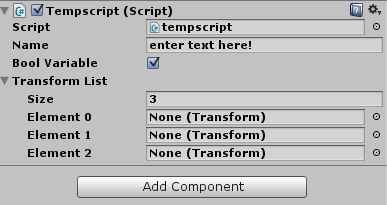
You can even use lists of variables, such as:

public List<string>Names;

And in the designer you can set the number of list items and each value in the list:

UnityPublicVariables2

Remember though that if you declare these variables as public, but don’t set their values in the designer OR the script your script will throw exceptions when you try to access the (null) values.

You must include the relevant namespace at the top of your script to use lists:

using System.Collections.Generic;


Public Unity Objects

It’s very useful to use public variables to hold references to gameobjects, transforms, etc. When you do this, you can drag-and-drop items from your scene into the variable’s public value.

For example, if you want to reference a specific GameObject in your script, you can make a public field:

public GameObject MyGmeObject;

And drag-and-drop any game object from your scene into the empty field.

Your script can now access that game object via the MyGameObject variable. This is great for improving workflow, and even performance.

Of course you can use a list of GameObjects and drag-and-drop multiple objects into that list, such as a list of UI buttons or enemy spaceships.

Unity is also clever enough to infer the correct component if required. For example, if you have a public Transform variable and drag a game object onto it in the editor, Unity will automatically know to grab the game object’s transform to put into the public variable. This makes it much less fiddly than it could be.
Serialization

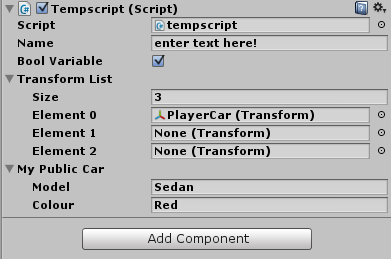
You can make custom classes editable in the Unity editor too. Simply add [System.Serializable] before the class definition, like this:

[System.Serializable]
public class Car
{
    public string model;
    public string colour;
}

UnityVars3


That’s It

That’s how public variables work in Unity!

Below is the full text for a script using the above examples. You can attach this script to any game object in your Unity project to check it out. One way to do this is:

  1. Create a new game object (Unity Menu > GameObject > Create Empty)
  2. Select the new game object in the Hierarchy panel.
  3. In the Inspector panel, click Add Component.
  4. Select New Script.
  5. Change the script’s name to DemoScript*.
  6. Click Create and Add.
  7. Double-click the script name in the Inspector panel (this opens the script in your script editor, probably MonoDevelop or Visual Studio).
  8. Delete all the current script code (Ctrl-A, Del)
  9. Copy and paste the script code below into the empty script.
  10. Save the script.
  11. Go back to Unity, where the public variables are now available to edit in the instpector.
  • In Unity, the script’s filename must match the class name. In the code below the class name is DemoScript, so the filename must also be DemoScript. You can of course change the name, but must change both the filename and the class name.

Demo Public Variables Script

using UnityEngine;
using System.Collections;
using System.Collections.Generic;

public class DemoScript : MonoBehaviour {

    public string Name;
    public bool BoolVariable;
    public List TransformList;

    [System.Serializable]
    public class Car
    {
        public string model;
        public string colour;
    }

    public Car MyPublicCar;

    // the rest of your code goes here!
    // you need to DO something with all those variables!
}

That’s the basics of how Unity handles variables in ways specific to creating games easily. In Part 2 I will explain the MonoBehaviour class’s special methods such as Update() and Awake().